
VSeeBOX VOD Ultra: How to Find Exactly What You’re Looking For
Best Prices on V3 Plus. Make an Offer Here! https://ebay.us/m/Rn9cZb
1. Use the Built-In Search on the VOD Main Page
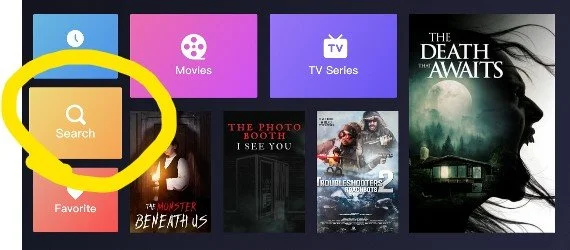
That bright yellow-highlighted tile labeled "Search" on the left side of the screen? That’s your starting point. From any VOD Ultra main screen, just click Search, and you’re on your way to finding exactly what you want—no more endless scrolling.
Easy Steps to Search VOD Ultra Like a Pro
Launch Heat VOD Ultra.
Navigate to the main VOD screen—just like the one in the screenshot.
Highlight and click on the Search button (that gold tile on the left side).
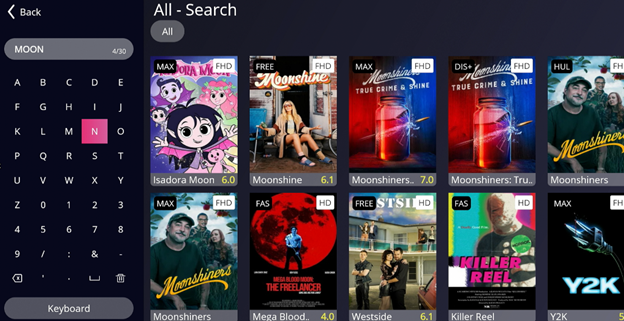
Type in part of a title—maybe “moon” for Moonfall or “bat” for Batman.
Review the results and start streaming right away.
Just type any part of the title, like "moon" or "fall", and the app will pull up any matches immediately.
VODUltra
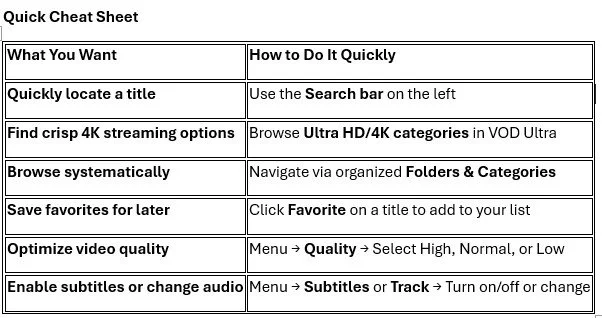
Explore Ultra HD & 4K Collections Heat VOD Ultra isn’t just a rebrand—it offers more Ultra HD and 4K content compared to the regular VOD version. If you're after crisp, sharp visuals, this is where you'll find it.
Browse Organized Folders & Categories Unlike the older VOD interface, VOD Ultra sorts content into folders or categories, making it easier to browse by genre, type, or group—without getting lost in endless listings.
Add to Your Favorites for Easy Access See a title you love or want to revisit? Select it, then press “Favorite” on the options. Your picks get saved to a Favorites list—always just a click away.
Picture Quality Based on Your Connection During playback, press the Menu button → go to Quality, and choose between High, Normal, or Low. Use High for 4K content (if your connection supports it), or scale down if buffering becomes an issue.
Turn Subtitles and Audio Track On (or Off!) If subtitles or alternate audio tracks are available, you can toggle them mid-playback. Press Menu → go to Subtitles or Track, then select your preferred language—or choose “None” to disable.
vSeeBox