
Connect VseeBox by Wi‑Fi vs. Ethernet (and When Each Wins)
Best Prices on V3 Plus. Make an Offer Here! https://ebay.us/m/Rn9cZb
At a glance
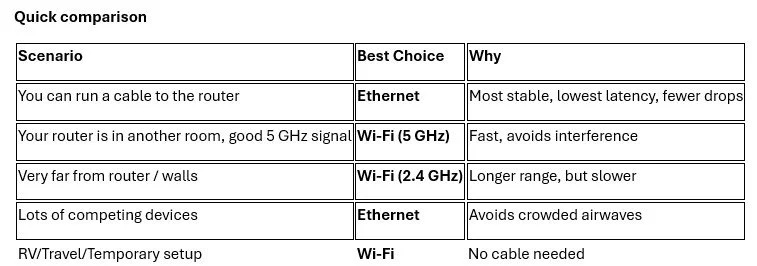
Ethernet = maximum stability. Wi‑Fi = flexibility. Pick the right option for your home, then follow the connection steps.
Recommended internet speed
25 Mbps minimum per stream, 100 Mbps+ recommended for the smoothest 4K experience and busy homes.
Connect with Ethernet
Plug an Ethernet cable from your router to the vSeeBox LAN port.
Go to Settings › Network & Internet and confirm Ethernet shows Connected.
Connect with Wi‑Fi
Go to Settings › Network & Internet › Wi‑Fi.
Choose your network (prefer 5 GHz), enter the password, and select Connect.
Confirm Connected and note signal strength.
Advanced tips
Router QoS: Prioritize the vSeeBox MAC address for streaming.
Channel selection: On the router, choose a clear 5 GHz channel if you’re seeing congestion.
Mesh/Extenders: Add a mesh node near the TV if the signal is weak.
Troubleshooting
Drops on Wi‑Fi: Move the box or router, reduce obstructions, try 5 GHz, or switch to Ethernet.
Slow speeds: Power‑cycle your modem/router, then the vSeeBox; run a speed test.
No connection: Verify the password, toggle Airplane mode OFF (if present), or forget & re‑add the network.